

The preview version renews the design and navigation of the cloud game.
More stories in the category News
- GTA 6 may not arrive in physical format on launch day to avoid leaks
- For a very limited time you can get three free games for Xbox Series and Xbox One
- Marathon presents the Distruttor: this is the most aggressive class of Bungie’s new shooter
| Don't miss anything and follow us on Google News! |
Xbox has launched a new web experience for Xbox Cloud Gaming that can now be tested in the form of a public preview. This is a complete redesign of the browser interface that will serve as the foundation for future features and improvements, and Microsoft wants to validate it with direct feedback from players before its general deployment.
This test does not replace the current version yet, but coexists with it. Users who sign up for the preview will see changes in navigation, visual appearance, and overall service flow, with the warning that some features may not be available or may behave differently during this period.
How to activate the new Xbox Cloud Gaming web experience
To try out this new version, you don’t need to install anything. Everything is done from the browser by following these steps:
-
Enter xbox.com/play from a compatible browser. — From here
-
Sign in with your Xbox account.
-
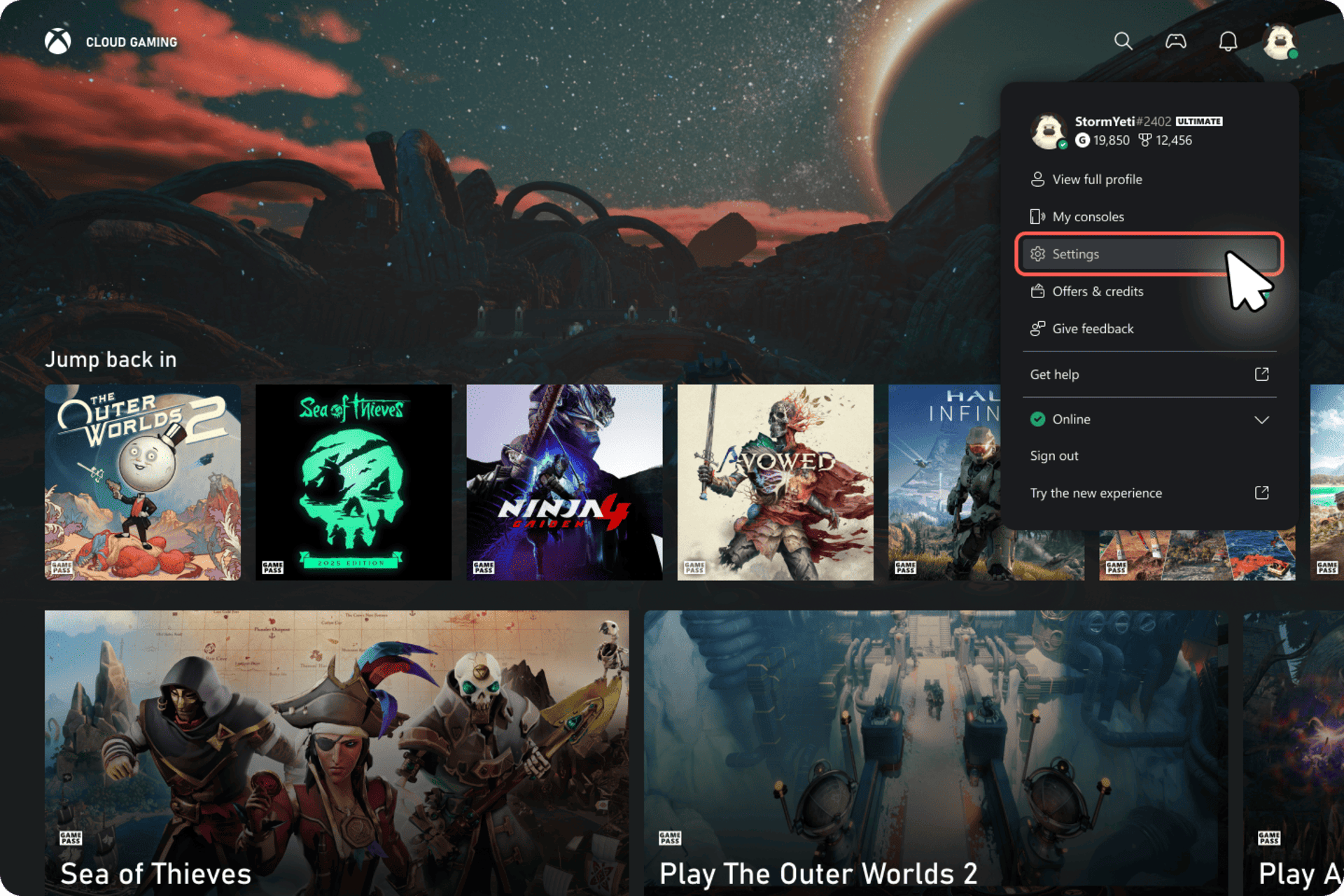
Once inside, access Settings and make sure to activate the Preview Features switch.
-
After activating it, you can access the new experience in two ways:
-
By following the notices and links that will appear automatically on the web.
-
By typing play.xbox.com directly into the browser’s address bar.
-
Xbox warns that changes may take up to 10 minutes to activate after selecting the option. If nothing appears, closing the session and logging back in usually accelerates the process.
At any time, you can return to the classic experience by going back to xbox.com/play.
How to send feedback and help improve the service
Microsoft emphasizes that this phase is crucial for polishing the platform, so user feedback is essential. From the website itself, you can send comments in two ways:
-
From your profile: click on the user icon in the top right corner and select Give Feedback.
-
From the Xbox web guide: open the guide with the Xbox icon in the top left corner (or with the Xbox button on the controller) and choose Give Feedback.
All reports sent during the preview will be used to adjust the experience before its final release, shaping the future of Xbox cloud gaming in the browser.


Founder and editor of SoloXboxOne and Generación Xbox. He is also one of the owners of the GX Group, Samsung Universe and the Reflotes forum. Adrian has reviewed over 200 games on the web and has an average score of 85 according to Opencritic. Among his expertise as a writer and analyst, he has interviewed Microsoft personalities and participated in private gaming events.
Related Post